Remote control (Option 2)
The type of remote control supplied with your TV may vary depending on the model, country or region of sale.
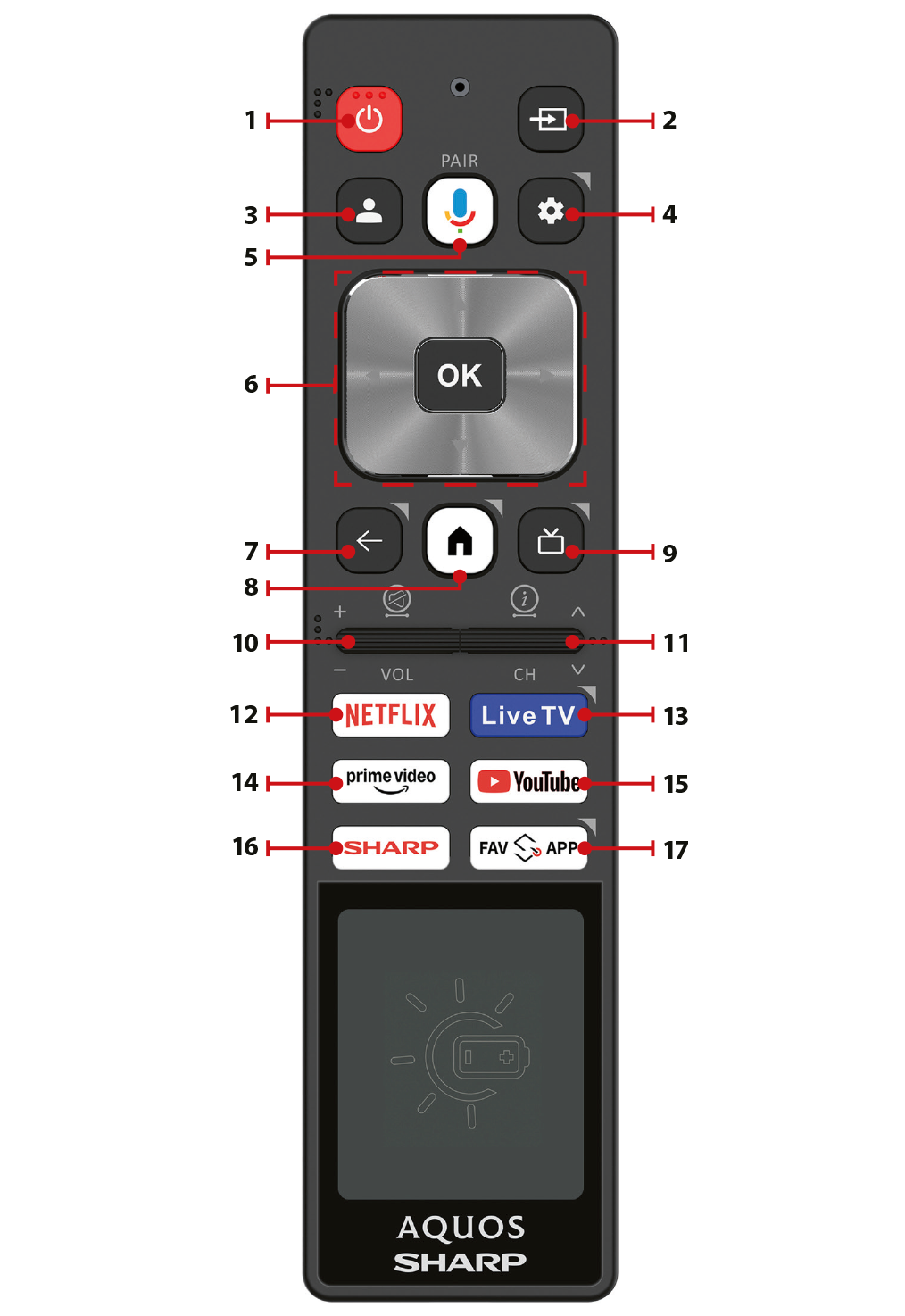
1.STANDBY – Switch on the TV when in standby or vice versa. Press and hold this button to display the power menu, where you can switch the TV to energy-saving standby mode.
2.SOURCE – Displays the input/source menu.
3.PROFILE – Switches between different user profiles.
4.MICROPHONE – Press and hold to use your voice to access entertainment, control smart devices, get answers on screen, and more.
5.SETTINGS – Short press: Opens the Settings menu. Long press: Displays the on-screen keyboard (Live TV mode only).
6.(▲/▼/◄/►/ OK) – Allows you to navigate the on-screen menus and adjust the system settings to your preferences.
7.BACK – Short press: Step back in the menu. Long press: Exit the currently displayed menu.
8.HOME – Short press: Displays the TV’s Home screen. Long press: Opens the Settings menu.
9.LIVE GUIDE – Opens the 7-day TV guide (digital TV mode).
10.VOL +/- – Tilt to increase/decrease the sound level. Press and hold shortly to mute/restore the sound.
11.CH +/- – Tilt to switch to the next/previous channel in the sequence. Press and hold shortly to view information about the programme you are currently watching. Press and hold shortly again to view detailed information. Press ► while the information panel is displayed to view information about the upcoming programme.
12.NETFLIX – Access to the Netflix app.
13.LIVE TV – Switches the TV source to live broadcast channels received via the TV tuner.
14.PRIME VIDEO – Access to the Prime Video app.
15.YOUTUBE – Access to the YouTube app.
16.SHARP – Opens the SHARP Smart Portal.
17.FAV APP – Long press: A list of apps opens. Select the app you want to assign to the FAV APP button for quick access. Short press: Launches the remembered app.
Note:
•This remote control is solar-powered. It does not contain any batteries; however, it must have access to a light source to stay charged and in working condition.
•A solar cell is located in the lower half of the top side. Make sure this part of the remote control has access to room light.
•Keeping the remote in dark places, such as drawers, may lead to complete discharge.
•If the remote is discharged, you can use a USB-C cable to quickly charge it with a phone charger.
Pairing the remote control with the TV
1.Press the XXX.GHM (Home) button, then from the top row select [Quick Settings] and press OK.
2.The Quick Settings menu appears. Keep the cursor on the Settings symbol and press the OK button again to enter the Settings menu.
3.Then select [Remotes and accessories] > [Pair remote or accessory].
4.Follow the on-screen instructions to pair the remote control with the TV. You can pair the remote in one of three ways—choose the method that suits you best:
•Briefly press the XXX.GMC (Microphone) button.
•Press and hold the XXX.GLF (Back) and XXX.GHM (Home) buttons simultaneously.
•Press and hold the Left Arrow and XXX.GHM (Home) buttons simultaneously.
5.The name of your remote will appear on the TV screen. Press OK to confirm the pairing.
How to unpair / reset your remote
To unpair your remote from another device, press and hold the SOURCE and XXX.GLF (Back) buttons simultaneously for 5 seconds. The LED on the remote will blink red briefly to confirm successful unpairing.
Note:
•If you encounter any issues with pairing or using the remote control, you can try resetting it this way and then pair it again.