Home screen
The Google TV Home screen is the central hub for accessing features and content on your TV. It provides an easy-to-use interface that allows you to browse apps, recommendations and settings.
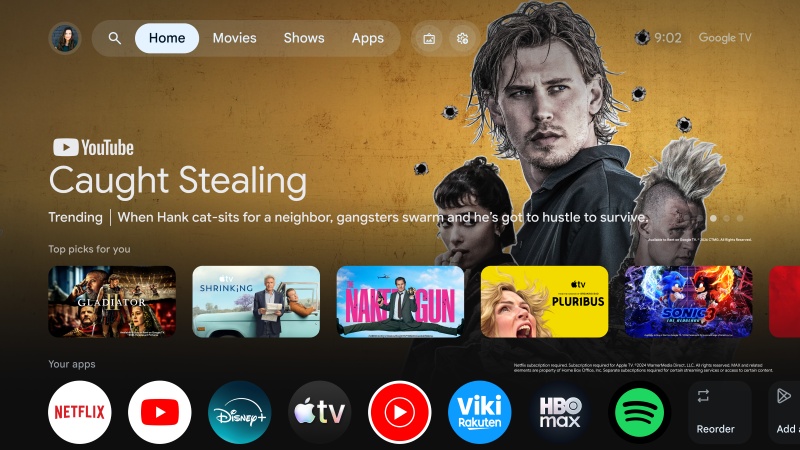
You can open the Home screen at any time by pressing the XXX.GHM (Home) button on the remote control. In the top row of the Home screen, you can find the following options:
[Profile] – Google TV supports multiple user profiles, allowing each family member to have their own personalised experience. The Profile Switching feature lets you switch between user profiles to access personalised recommendations and settings. From here, you can also create a new profile or add a child profile to your account. Each profile includes the following options:
[Watchlist] – Contains movies and shows that you have marked to watch later.
[Library] – Contains content that you have bought or rented.
[Content preferences] – Displays posters of movies and shows and lets you choose whether you like or dislike them. After completing this process, you will receive better recommendations.
[Search] – Use the search bar to search for movies or shows. You can also search for content by selecting one of the preset genres listed below the search bar.
[Home] – The Home screen is the main landing page of the Google TV interface. It displays a customisable layout with content recommendations, recently accessed apps and personalised suggestions based on your viewing habits.
[Apps] – The Apps section gives you quick access to all installed applications on your Google TV. You can browse and open your favourite streaming services, games and other apps from this section. You can also search for and install apps and games from this menu.
[Screensaver] – Activates the screensaver feature.
[Quick Settings] – In Quick Settings, you can customise and configure commonly used Google TV settings, such as display, audio and network settings. Notifications are displayed at the bottom. If you keep the XXX.GST (gear icon) selected and press OK, the full Settings menu will open.
Note:
•The description of the Home screen above applies when at least one Google Account is linked to the TV.
•The top row of the Home screen may contain additional items, depending on the country selected during the initial installation.
Installing new apps
Your TV comes with a variety of pre-installed apps, but you may want to download additional apps to customise your viewing experience. Follow the steps below to install a new app:
1.Press the XXX.GHM (Home) button to open the Home screen.
2.In the top row, select [Apps].
3.Use the search bar to search for the app or game you want to install. Enter the app name using the on-screen keyboard.
4.Select the app you want to download.
5.If the app is free, select [Install] to start the download. If the app is not free, select the price and follow the prompts to complete the purchase.
6.The new app will be added to the end of the Apps row on the Home screen.
Note:
•Some apps may not be compatible with your TV or may not be available in your country. If you have trouble downloading an app, check the app's compatibility and availability information.
•You can also download apps to your Google TV using your phone or computer. To do this, navigate to the Google Play Store on your phone or computer and select the app you want to download. Then, select your Google TV from the list of available devices and follow the prompts to complete the download.
Removing apps
1.Press the XXX.GHM (Home) button to open the Home screen.
2.In the top row, select [Apps].
3.Find the app you want to uninstall in the list of your apps, or use the search bar to find it.
4.When you find the app, select it and choose [Uninstall].
5.The app will be removed from the Apps row on the Home screen automatically.
Note:
Certain preinstalled apps cannot be uninstalled.